
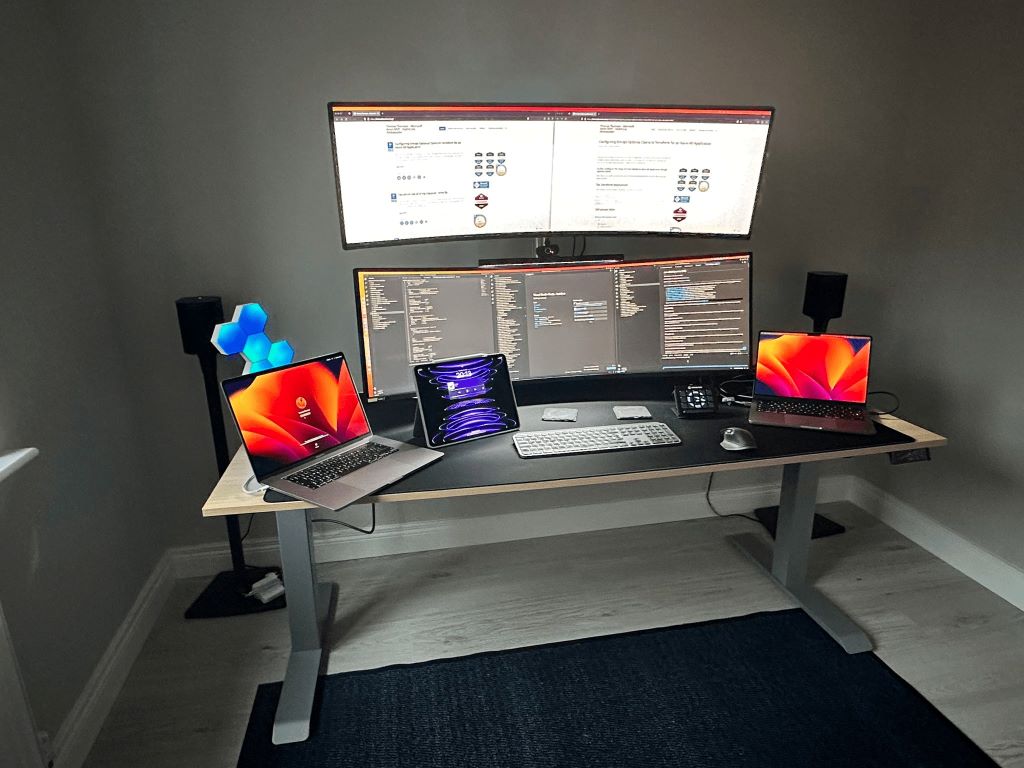
Imagine sitting down to tackle your most important project, only to waste 20 minutes searching for a lost file. Another 10 minutes are lost to digital clutter. Before you know it, your focus is shattered, and your productivity plummets. This scenario plays out daily for millions of professionals—all because their productive desktop setup was never optimized for efficiency.
Research reveals that the average worker loses 2.5 hours per day to disorganization and distractions (McKinsey). Your desktop isn’t just a screen; it’s the hub of your workflow. A chaotic setup drains mental energy, slows down decision-making, and sabotages your output. Yet, most people treat desktop organization as an afterthought rather than a strategic advantage.
This guide dives deep into the psychology and practical steps behind crafting a desktop that supercharges your productivity. You’ll discover how industry leaders structure their digital workspaces, the tools that eliminate friction, and the habits that keep clutter at bay. Whether you’re a remote worker, entrepreneur, or corporate professional, these principles will transform your desktop from a liability into your greatest asset.
The Psychology of a Productive Desktop: Why Clutter Kills Focus
Decision Fatigue: The Silent Productivity Killer
Every file, icon, or notification on your desktop forces your brain to make a micro-decision. Studies show that the average person makes 35,000 decisions daily (Cornell University). Each one depletes your mental energy. A cluttered desktop overwhelms your working memory, leaving less capacity for deep work.
Solution: Limit desktop icons to 5–7 essential items. Store everything else in organized folders or a secondary monitor.
The Power of Visual Simplicity
Your brain processes visual information 60,000 times faster than text (3M Corporation). A clean desktop reduces cognitive load, allowing you to focus on tasks. Apple’s macOS and Microsoft’s Windows 11 default to minimalist designs for this reason.
Example: Tim Ferriss, author of The 4-Hour Workweek, keeps only three items on his desktop: a notes app, calendar, and current project folder.
The “Out of Sight, Out of Mind” Trap
Hiding files in nested folders seems organized, but it creates friction. If you can’t find a document in 10 seconds or less, your system is broken. Workspace organization tips emphasize balance: visible enough to access quickly, hidden enough to avoid distraction.
Pro Tip: Use a hotkey launcher like Alfred (Mac) or PowerToys (Windows) to open files instantly without cluttering your desktop.
The 5 Core Principles of a High-Performance Desktop Setup
1. The One-Click Rule
Every essential tool or file should be accessible in one click or less. This means:
- Docking frequently used apps to your taskbar.
- Pinning key folders to your desktop or file explorer sidebar.
- Using keyboard shortcuts for repetitive actions.
Example: A graphic designer pins Adobe Creative Cloud, a “Current Projects” folder, and Slack to their dock.
2. Zoned Organization for Mental Clarity
Divide your desktop into functional zones:
- Primary Zone: Current project files and apps.
- Secondary Zone: Reference materials (e.g., templates, guides).
- Archive Zone: Completed projects or rarely used files.
Tool: Fences (Windows) or Desktop Groups (Mac) create virtual zones without physical monitors.
3. The 80/20 Rule for Desktop Icons
Apply the Pareto Principle: 80% of your work comes from 20% of your tools. Identify those critical 20% and prioritize their accessibility. Everything else should be tucked away.
Case Study: A marketing team reduced desktop icons from 30 to 6 (Canva, Google Drive, Trello, Zoom, Excel, and a “Campaigns” folder). Project completion time dropped by 22%.
4. Automated Workflows to Eliminate Friction
Repetitive tasks drain productivity. Automate:
- File sorting with Hazel (Mac) or DropIt (Windows).
- Backups with Time Machine or Backblaze.
- App launches with IFTTT or Zapier.
Example: A freelance writer automates client files to sort into labeled folders by project name.
5. The 10-Minute Daily Reset
Spend 10 minutes at the end of each day to:
- Clear downloaded files.
- Archive completed tasks.
- Update your to-do list for tomorrow.
Research: Workers who declutter daily report 17% higher productivity (Harvard Business Review).
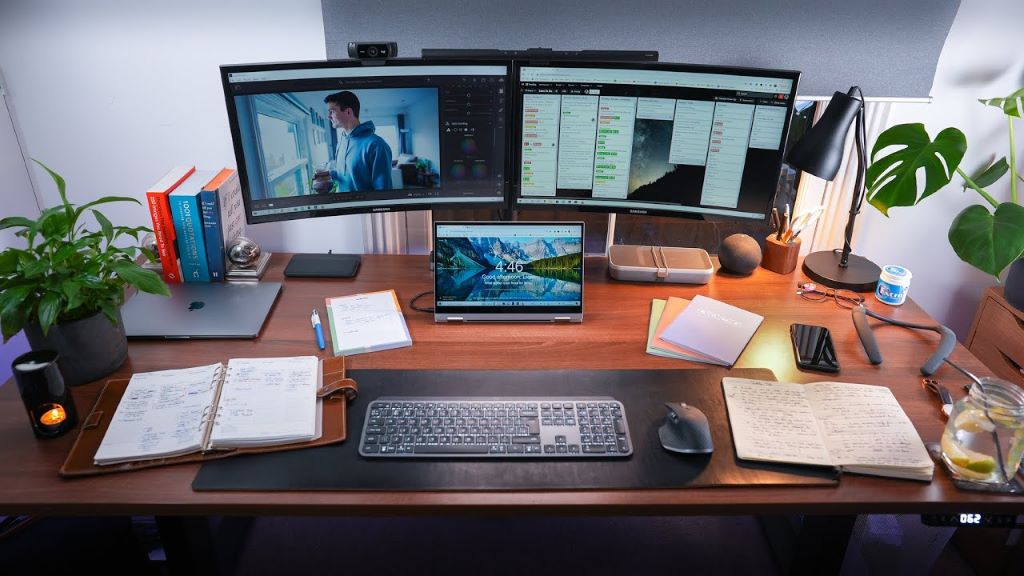
Step-by-Step Guide to Building Your Productive Desktop Setup
Step 1: Audit Your Current Desktop
Ask yourself:
- What files or apps do I use daily?
- What’s cluttering my space but rarely used?
- What slows me down the most?
Tool: Use Screentime (Mac) or RescueTime (Windows) to track app usage.
Step 2: Choose a Minimalist Wallpaper
A busy wallpaper distracts. Opt for:
- Solid colors (e.g., soft blue for calm, green for focus).
- Subtle gradients or abstract designs.
- Avoid: Photos, bright patterns, or text.
Example: Many professionals use Wallhaven or Unsplash for high-quality, distraction-free wallpapers.
Step 3: Implement a Folder System That Works
Create broad, intuitive categories:
- 01_Active Projects
- 02_Reference Materials
- 03_Archive
- 04_Personal
Pro Tip: Prefix folders with numbers (e.g., “01_”) to force alphabetical ordering.
Step 4: Leverage Virtual Desktops for Multitasking
Use Spaces (Mac) or Virtual Desktops (Windows) to separate tasks:
- Desktop 1: Communication (Email, Slack, Zoom).
- Desktop 2: Creative Work (Photoshop, Figma).
- Desktop 3: Analytics (Google Analytics, Excel).
Example: A developer uses one desktop for coding, another for meetings, and a third for testing.
Step 5: Optimize Your Dock or Taskbar
Keep it lean:
- Mac: Limit dock icons to 5–7. Enable “auto-hide” to reduce visual noise.
- Windows: Pin only essential apps. Use small taskbar icons to save space.
Step 6: Use a Secondary Monitor (If Possible)
Studies show dual monitors boost productivity by 20–30% (University of Utah). Use the second screen for:
- Reference materials.
- Communication tools.
- Secondary tasks (e.g., email while working on a doc).
Step 7: Set Up Hotkeys and Shortcuts
Memorize or customize these:
- Mac: Command + Space (Spotlight), Command + Tab (app switcher).
- Windows: Win + D (show desktop), Alt + Tab (app switcher).
Tool: BetterTouchTool (Mac) or AutoHotkey (Windows) for custom shortcuts.
Real-World Examples of Productive Desktop Setups
Example 1: The Remote Worker
Setup:
- Desktop 1: Zoom, Slack, Notion (for tasks).
- Desktop 2: Google Docs, Trello, and a “Current Projects” folder.
- Tools: Alfred for app launching, Dropbox for file syncing.
Result: Cuts time spent searching for files by 40%.
Example 2: The Creative Professional
Setup:
- Primary Monitor: Adobe Creative Cloud apps, a “Client Work” folder.
- Secondary Monitor: Pinterest for inspiration, Spotify for focus music.
- Tools: Hazel auto-sorts downloaded assets into project folders.
Result: Completes designs 25% faster with fewer distractions.
Example 3: The Executive
Setup:
- Desktop 1: Outlook, PowerPoint, OneNote.
- Desktop 2: Excel dashboards, CRM (Salesforce).
- Tools: PowerToys for window management, OneDrive for cloud backups.
Result: Reduces meeting prep time by 30 minutes daily.
Common Mistakes That Sabotage Your Desktop Productivity
Mistake 1: Treating Your Desktop as a Filing Cabinet
Saving every file to your desktop creates chaos. Fix: Use a Downloads folder for temporary files. Move everything else to labeled folders.
Mistake 2: Ignoring Digital Hygiene
Unused apps, old downloads, and duplicate files slow your system. Fix: Run a weekly cleanup with CleanMyMac or CCleaner.
Mistake 3: Overcomplicating Your System
Too many folders or tools create friction. Fix: Stick to 3–5 broad categories and automate the rest.
Mistake 4: Not Backing Up Critical Files
Hardware fails. Fix: Use Time Machine, Backblaze, or Google Drive for automatic backups.
Mistake 5: Letting Notifications Rule Your Desktop
Constant pings break focus. Fix: Turn off non-essential notifications. Use Focus Mode (Windows) or Do Not Disturb (Mac) during deep work.
Expert Tips for Maintaining a Productive Desktop Long-Term
Tip 1: The Two-Minute Rule
If a task takes less than two minutes, do it immediately. This prevents small tasks from piling up.
Tip 2: Weekly Digital Declutter
Set a 15-minute weekly appointment to:
- Delete unused files.
- Organize new projects.
- Update your folder structure.
Tip 3: Use Cloud Sync for Seamless Access
Tools like Dropbox, Google Drive, or OneDrive keep files accessible across devices. Bonus: They act as a backup.
Tip 4: Invest in a Monitor Arm or Stand
Ergonomics matter. A monitor at eye level reduces neck strain and improves posture, keeping you productive longer.
Tip 5: Limit Personal Distractions
Keep personal apps (social media, games) off your work desktop. Use a separate user account if needed.
FAQs About Setting Up a Productive Work Desktop
1. How many icons should I keep on my desktop?
Aim for 5–7 essential items. More than 10 creates visual noise and slows you down.
2. What’s the best way to organize files for quick access?
Use broad, labeled folders (e.g., “Clients,” “Projects,” “Resources”) and subfolders for specifics. Prefix folders with numbers (e.g., “01_Clients”) for easy sorting.
3. Do I need a second monitor for productivity?
Not essential, but dual monitors increase productivity by 20–30% for multitasking-heavy roles (e.g., developers, designers, writers).
4. How do I stop my desktop from getting cluttered again?
Implement the 10-minute daily reset and weekly declutter. Use automation tools like Hazel or DropIt to sort files automatically.
5. What are the best tools for desktop organization?
- Mac: Alfred, Hazel, BetterTouchTool.
- Windows: PowerToys, DropIt, Fences.
- Cross-Platform: Trello (for tasks), Notion (for notes), Google Drive (for files).
6. How do I handle digital distractions on my desktop?
Turn off non-essential notifications. Use Focus Mode or apps like Freedom to block distracting sites during work hours.
7. Can a clean desktop really improve my productivity?
Absolutely. A clutter-free desktop reduces cognitive load, allowing you to focus on high-value tasks. Studies show it can save up to 2.5 hours daily.
Related Topics:
-
How to Position Your Computer Screen – The Correct Way
- How to Grow Your Video Audience Quickly in 2026
Conclusion: Your Desktop Is a Reflection of Your Mind—Optimize It
A productive desktop setup isn’t about perfection. It’s about creating a system that reduces friction, minimizes distractions, and amplifies your focus. The principles in this guide—from zoned organization to automated workflows—are used by top performers across industries.
Your next steps:
- Audit your current desktop and identify pain points.
- Implement the one-click rule for your most-used tools.
- Schedule a weekly declutter to maintain your system.
Ready to transform your productivity? Share your biggest desktop challenge in the comments—or book a free 15-minute consultation with our workspace experts to get a personalized setup plan!
